

Introduction
The security of your software and systems has become a top priority in an era where data breaches and cyber threats frequently make the news. Fortunately, improvements in security tools and technology have made it simpler to detect vulnerabilities early on and lower the likelihood that they will be exploited. Trivy is one such product that has become increasingly well-liked in recent years. It is a potent vulnerability scanner created to assist organisations in identifying and resolving potential security vulnerabilities. In this article, we’ll examine Trivy’s capabilities and advantages and see how it may support your security initiatives.
What is Trivy?
An open-source, thorough vulnerability scanner called Trivy was created particularly for containerized settings, including Docker and Kubernetes. Users may use it to scan container images, find security flaws, and provide comprehensive reports on possible security issues. Trivy makes use of a sizable vulnerability database and a variety of security tests to guarantee thorough coverage and precise findings.
Key Features and Capabilities
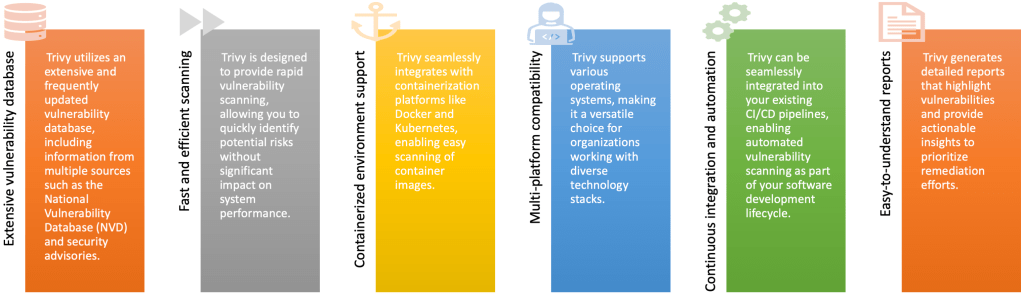
Benefits of Trivy
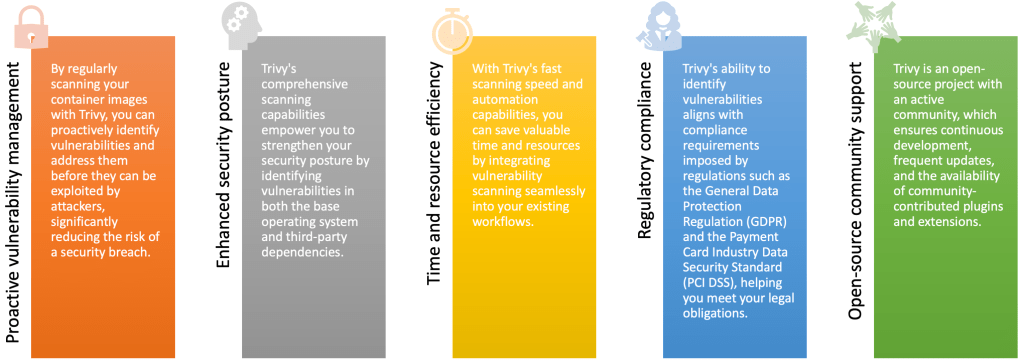
Getting Started with Trivy
To get started with Trivy, you can follow these simple steps:
1. Install Trivy
Trivy can be installed on various platforms, including Linux, macOS, and Windows. Detailed installation instructions can be found in the Trivy documentation.
| OS | Install Instructions |
| RHEL\CENTOS | https://aquasecurity.github.io/trivy/v0.18.3/installation/#rhelcentos |
| DEBIAN\UBUNTU | https://aquasecurity.github.io/trivy/v0.18.3/installation/#debianubuntu |
| MACOS | https://aquasecurity.github.io/trivy/v0.18.3/installation/#homebrew |
| DOCKER | https://aquasecurity.github.io/trivy/v0.18.3/installation/#docker |
| WINDOWS (DOCKER) |
Install Docker Desktop: 1. Visit the Docker Desktop website (https://www.docker.com/products/docker-desktop) and download the Docker Desktop installer for Windows. 2. Run the installer and follow the on-screen instructions to complete the installation process. 3. Once installed, Docker Desktop should be running on your Windows machine. Set Up Docker CLI: Install Trivy: Run Trivy: |
2. Scan container images
Once installed, you can start scanning your container images by running a simple command, specifying the image or container you want to scan. Here are some examples of how you can scan container images using Trivy.
1. Scanning a Docker image by name:
trivy image <image-name>
Replace <image-name> with the name of the Docker image you want to scan. Trivy will analyze the specified image for vulnerabilities and display the results.
2. Scanning a specific tag of a Docker image:
trivy image <image-name>:<tag>
Replace <image-name> with the name of the Docker image and <tag> with the specific tag you want to scan. Trivy will scan the specified image tag for vulnerabilities.
3. Scanning a local Docker image (loaded from a tar file):
trivy image -f /image.tar
Replace </image.tar> with the path to your local Docker image tar file. Trivy will load and scan the specified image for vulnerabilities.
4. Scanning a Kubernetes namespace in a cluster:
trivy k8s --namespace <namespace> --report=summary all
Replace <namespace> with the namespace in which the Kubernetes resources resides. This command allows Trivy to scan the resources within a Kubernetes namespace. For more examples, of scanning Kubernetes resources check official documentation.
3. Analyze the scan results
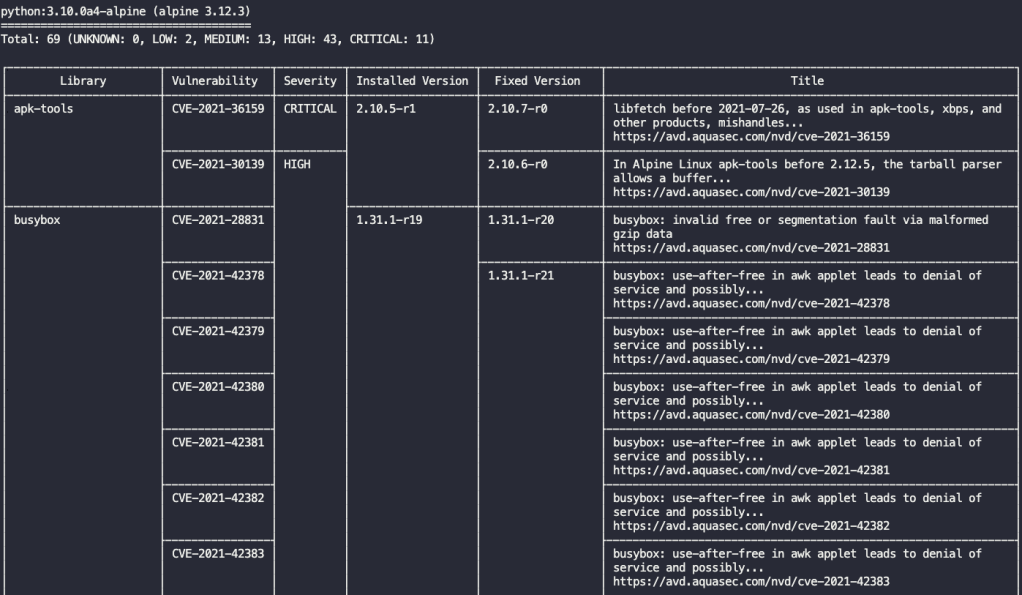
Trivy will generate a detailed report containing identified vulnerabilities, their severity levels, and suggested remediation steps. In the below example, Trivy provides a summary of the scan results for docker image python:3.10.0a4-alpine, indicating the total number of vulnerabilities found and their distribution based on severity levels (Critical, High, Medium, Low). It then lists individual vulnerabilities with details such as CVE IDs, affected packages, installed versions, fixed versions, and descriptions. References to external sources like MITRE’s CVE database are also provided for further information on each vulnerability.
4. Remediate vulnerabilities
Based on the scan results, You can remediate vulnerabilities based on the scan results from Trivy by following below steps:
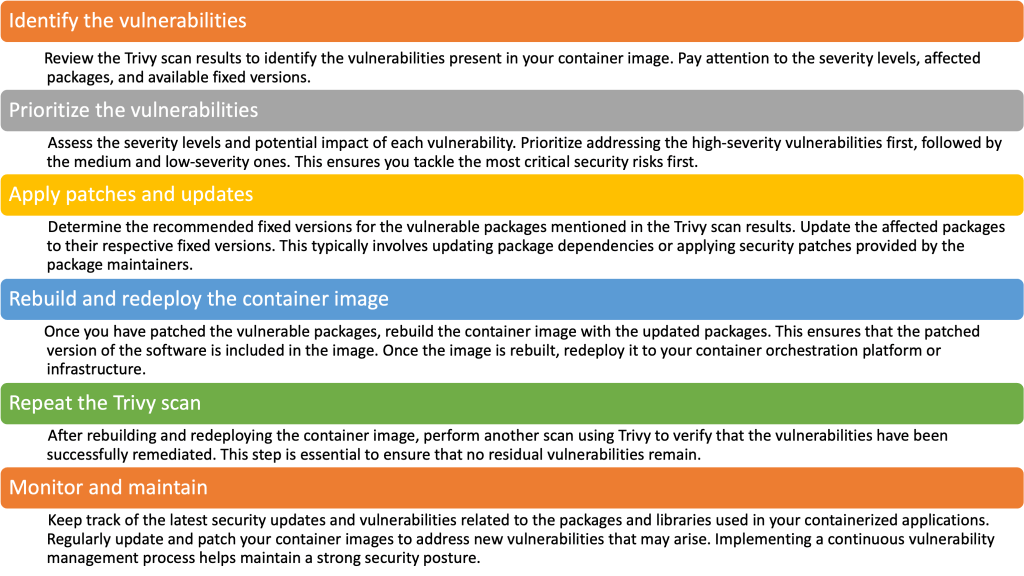
Keep in mind that the remediation procedure may change depending on your software stack and the specific vulnerabilities. To make sure the correct remedial actions are taken, always refer to the official documentation and resources offered by the package maintainers. For a strong security posture and to remain on top of new vulnerabilities, it’s also critical to often update your container images and run the scanning procedure.
Conclusion
In today’s digital landscape, ensuring the security of your software and systems is of utmost importance. Trivy provides a powerful and efficient solution for vulnerability scanning in containerized environments.
 The 'Cloud' Workbook